Invoice
The Department has partnered with EZPay+ to facilitate online payment processing. We also recognise, the application may not be paid by you and be done by a client. We therefore have established with EZPay+ to allow users to generate an invoice to be paid by your account or any another account.
Creating an Invoice
After an application has been vetted, users are given the option to create an invoice next (as determined during vetting).
 |
|---|
| Creating an invoice |
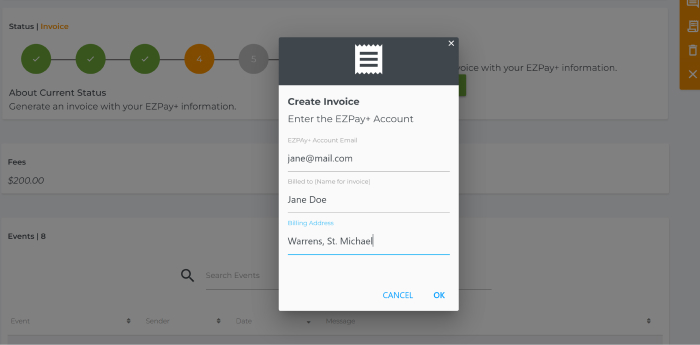
You will then be shown a pop-up so that you can add the information that will appear on the invoice. Click on the Ok button to complete the invoice.
 |
|---|
| Fill out the invoice form |
All created invoices are stored within its application as well as within the overall invoice section.
Payment
Once the invoice has been created, visit ezpay.gov.bb and login with your EZPay+ credentials. Select your invoice from within EZPay+ and pay with one of the available payment options. Once payment has been completed, you may return to the ePortal to check on the status of your application. Your application would have been automatically submitted and inserted into your Files for easy access. You will also receive an acknowledgement letter via the ePortal email, telling you of the application submission.
info
For issues regarding payment or invoice, contact us at portal@planning.gov.bb